5 Ways to Download Pinterest Videos and Images in Full Quality
Published Updated By SaveFlow Editorial
Pinterest makes saving content to your device harder than it should be. The platform wants you to save pins to boards, not to your hard drive. When you do manage to save an image, Pinterest often gives you a compressed version instead of the original. Here are five methods that actually work, each suited to different situations.
Why Pinterest Makes Downloading Difficult
Pinterest's whole model is built on keeping you on the platform. When you "save" a pin, it goes to your Pinterest board, which means you need to open Pinterest to see it again. That drives engagement and keeps you coming back. Letting you download the full-quality image to your device removes that incentive.
Pinterest also serves different image sizes depending on the context. A pin in your feed shows a smaller, more compressed version. When you click through to the pin page, you get a larger version. The original uploaded image might be larger still. Getting the best quality requires knowing which version to grab.
Method 1: SaveFlow for Video Pins
If the pin is a video, SaveFlow is the most straightforward option. Copy the pin URL from your browser or from the Pinterest app (tap the three dots, then "Copy link"). Go to saveflow.net, paste the URL, and download the video.
Pinterest videos are typically available at one or two quality levels. The quality options depend on what the uploader submitted. Most Pinterest videos are short clips, so file sizes are small regardless of quality. A 30-second Pinterest video at the highest available quality is usually under 10MB.
This method doesn't work for image pins. SaveFlow is a video downloader, so it needs video content to process.
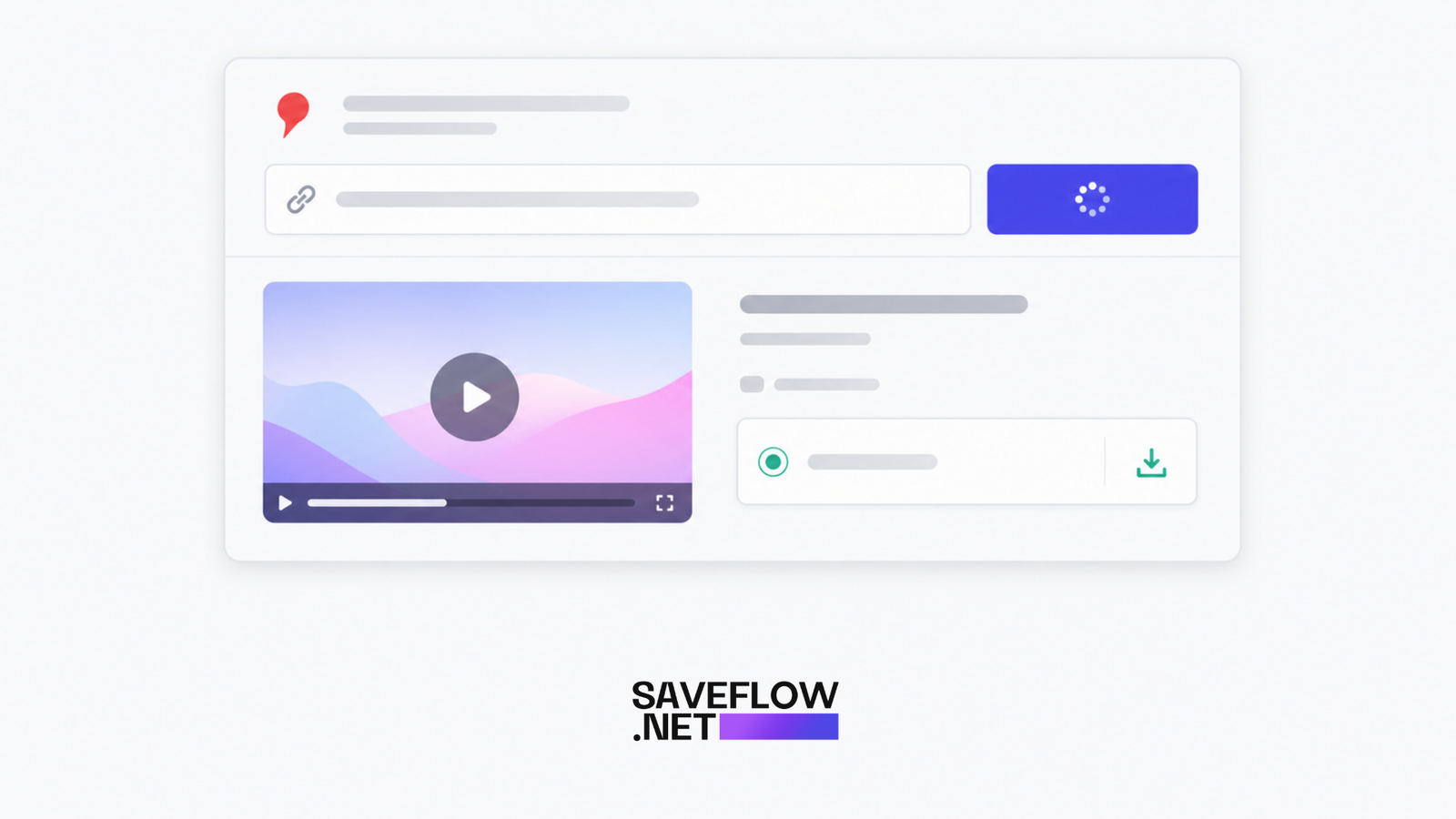
Download Pinterest video with SaveFlow video downloader
Method 2: Right-Click Save for Image Pins
The simplest method for images: open the pin in your browser, right-click the image, and select "Save image as." This works, but there's a catch. Pinterest often serves a mid-resolution version of the image on the pin page, not the original. The image you save might be 564 pixels wide instead of the original 2000-pixel version.
To check: after saving, look at the image file dimensions. If it's 564 pixels wide, you got the compressed version. If it's significantly larger, you got something closer to the original. For many casual uses (sending to a friend, using as phone wallpaper), the pin page version is fine. For printing or design work, you probably want the original quality.
On mobile
Long-press the image in your mobile browser. You'll see an option like "Save image" or "Download image." The same resolution limitations apply. This won't work in the Pinterest app itself since the app doesn't offer a direct save-to-device option for images (it only lets you save to boards).
Method 3: Pinterest's Built-in Save Feature
Pinterest's own download feature exists but is limited. On some pins, you'll see a three-dot menu with a "Download image" option. Not all pins have this. When available, it gives you a decent quality image, though usually not the original full resolution.
For video pins, Pinterest sometimes offers a "Download video" option too. The quality is generally okay but not always the highest available. This is the most "official" method, but it's inconsistently available.
Method 4: Browser Developer Tools for Original Quality Images
This is the power-user method. It requires a desktop browser and a little technical know-how, but it gets you the closest to the original image quality.
Open the pin page in Chrome or Firefox. Right-click anywhere on the page and select "Inspect" (or press F12). Click the "Network" tab. Reload the page. In the Network tab, filter by "Img" to see only image requests. Look for the largest image file in the list. That's usually the highest resolution version Pinterest has.
Pinterest image URLs contain size indicators. Look for URLs that include "originals" or larger dimensions in the path. A URL with "/originals/" is the uncompressed original. A URL with "/564x/" is the 564-pixel-wide compressed version. You can sometimes modify the URL manually, replacing the size parameter with "originals" to request the full version.
This method is overkill for most situations. But if you specifically need the highest possible quality from a Pinterest image, it's the most reliable approach.
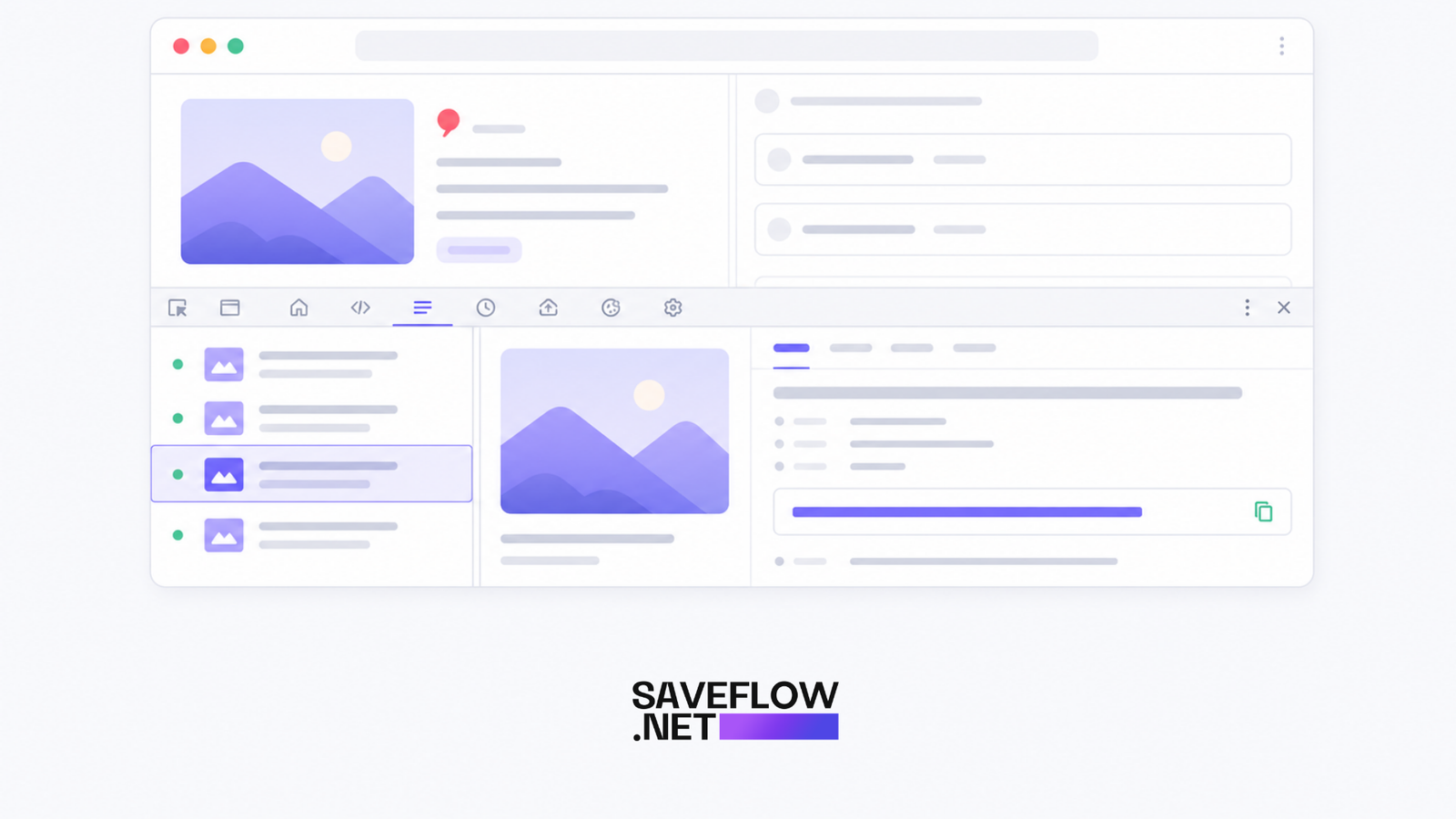
Pinterest developer tools trick to find original full quality image URL
Method 5: Mobile Long-Press Method
Open Pinterest in your phone's browser (not the app). Navigate to the pin you want to save. Long-press on the image. Your phone will show options like "Save image," "Share image," or "Download image." Tap to save.
This is essentially the mobile version of Method 2 (right-click save). The same quality limitations apply. You get whatever resolution the mobile Pinterest website serves, which is often compressed. It's quick and easy, though, which makes it the go-to for casual saving.
Image Pins vs. Video Pins vs. Idea Pins
Pinterest has three main content types, and each behaves differently for downloading.
Image pins are single images. Use Methods 2, 3, 4, or 5. They're the most common type of pin.
Video pins are short video clips. Use Method 1 (SaveFlow). Right-clicking won't work because the browser plays them as embedded video, not as an image you can save.
Idea pins (formerly called Story pins) are multi-page content with a mix of images and videos. They're the trickiest to download because each "page" is a separate media item. You might need to save each page individually by navigating through the Idea pin and saving each image or video one at a time.
Getting Original Resolution Images
Pinterest serves compressed versions by default to save bandwidth. The URL structure reveals the compression level. A typical Pinterest image URL looks like i.pinimg.com/564x/ab/cd/ef/image.jpg. That "564x" tells you the width. Common sizes are 236x (thumbnail), 564x (pin page), 736x (expanded), and originals (full uploaded size).
If you have a Pinterest image URL, try replacing the size part with "originals." So i.pinimg.com/564x/ab/cd/ef/image.jpg becomes i.pinimg.com/originals/ab/cd/ef/image.jpg. Open the modified URL in your browser. If it loads, you've got the original resolution. If it 404s, Pinterest may not have the original available for that pin (some older pins only have compressed versions stored).
Which Method to Use When
For video pins: Method 1 (SaveFlow). It's the only reliable way to download Pinterest videos.
For image pins when you don't care about maximum quality: Method 2 (right-click) or Method 5 (long-press on mobile). Quick and easy.
For image pins when you need the best quality: Method 4 (developer tools URL trick). More effort, better results.
For when the built-in option is available: Method 3 (Pinterest's download). Convenient when it appears, but don't rely on it since it's not available on every pin.
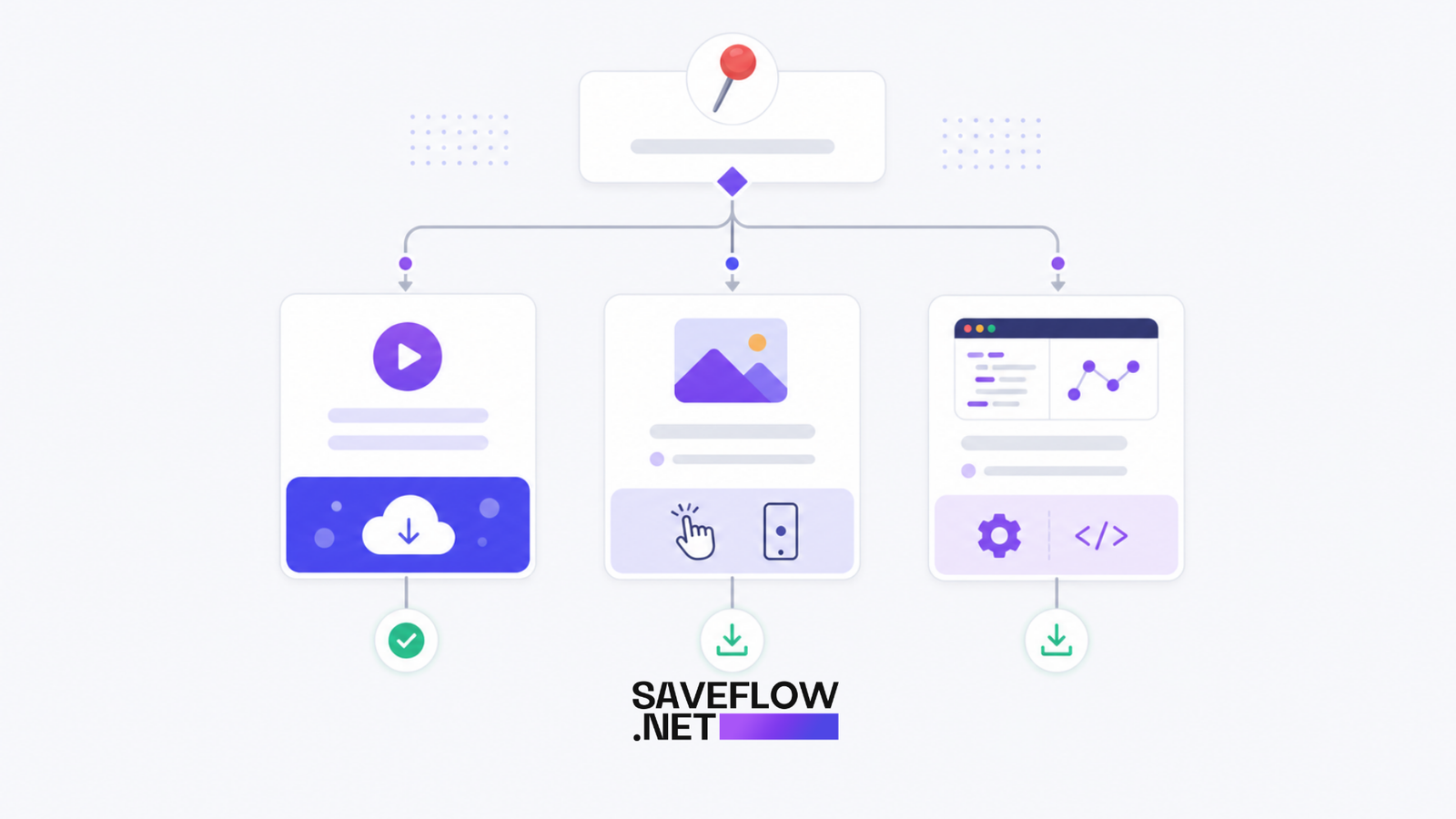
Pinterest download method decision tree video vs image quality needs
FAQ
Why is the Pinterest image I saved blurry?
You probably saved the compressed version. Pinterest serves images at 564 pixels wide by default on pin pages. Try the developer tools method (Method 4) or modify the image URL to replace the size parameter with "originals" to get the full resolution.
Can I download from Pinterest without an account?
For public pins, yes. Pinterest shows you a login nag after viewing a few pins, but you can usually dismiss it or open the pin URL directly. For SaveFlow, you just need the pin URL. No Pinterest account needed on the downloader side.
Does downloading pins violate Pinterest's terms of service?
Technically, their terms restrict downloading content. In practice, Pinterest is a platform where people share images they often don't own themselves. The copyright situation on Pinterest is complicated. For personal use, downloading is widespread and consequences are nonexistent.
Can I batch download all images from a Pinterest board?
Not with SaveFlow (it handles one URL at a time). Browser extensions exist that can bulk-download from Pinterest boards, but they vary in reliability and safety. Be cautious with browser extensions that request broad permissions.
Why can't I right-click save the image on some pins?
Pinterest occasionally changes how images are rendered in the browser, which can interfere with right-click saving. If right-click doesn't show the "Save image" option, try opening the image in a new tab (right-click, "Open image in new tab") and saving from there.