How to Download TikTok Videos Without Watermark on iPhone
Published Updated By SaveFlow Editorial
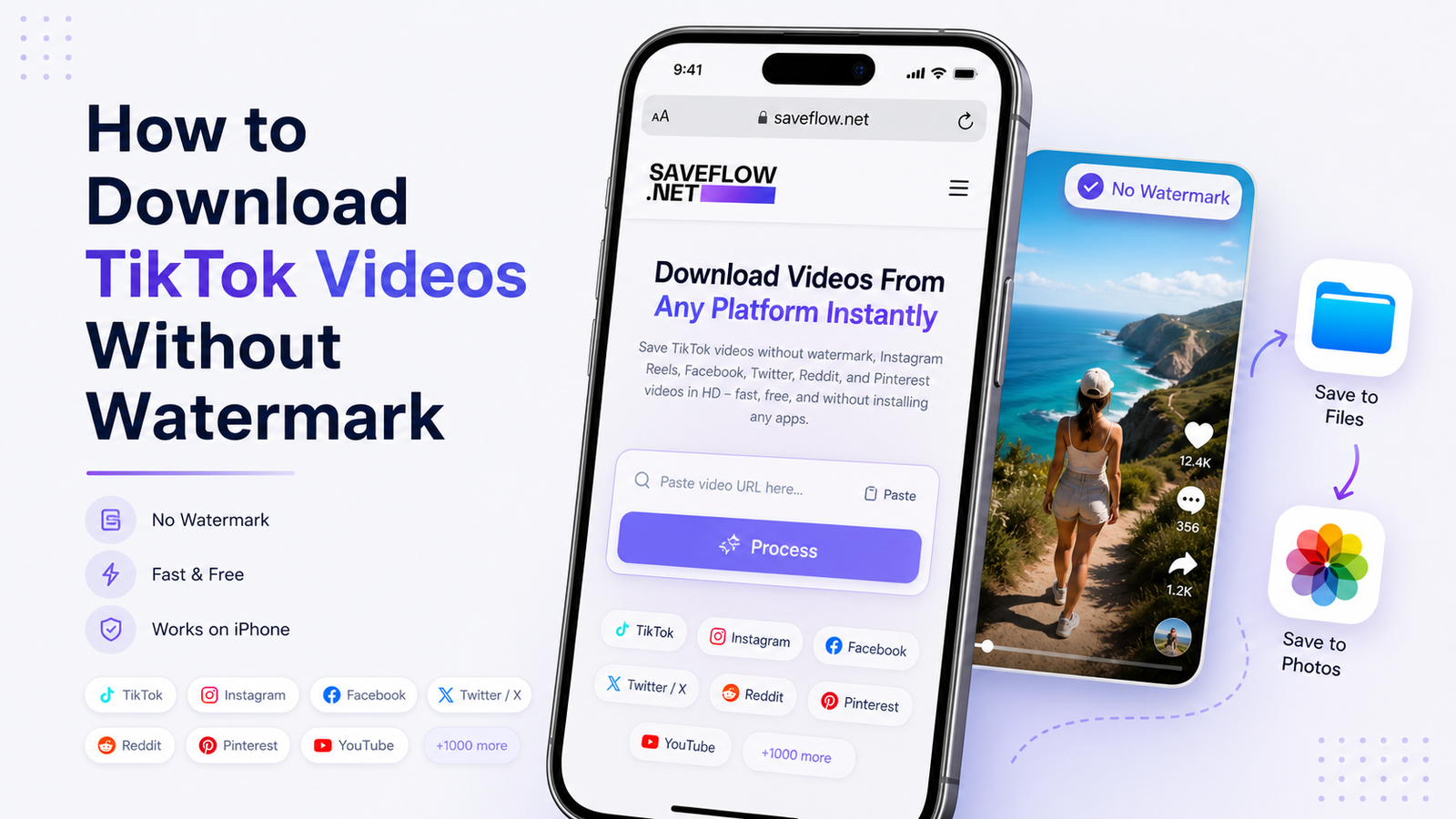
TikTok slaps its logo on every video you save through the app. If you want to download TikTok without watermark on iPhone, you need a workaround, and the simplest one is a web-based downloader you can use right in Safari. No app to install, no account to create. You paste the link, pick a quality, and save.
This guide covers the full process on iPhone, including the quirks iOS throws at you with downloads, how to get the video into your Camera Roll, and what to do when things go wrong.
Why TikTok Adds a Watermark in the First Place
When you tap "Save video" inside the TikTok app, you get a copy with the TikTok logo and the creator's username overlaid on the video. TikTok does this for two reasons. First, it's free advertising. Every time someone reposts that video on Instagram or sends it in a group chat, the watermark reminds people where it came from. Second, it credits the original creator, which is fair.
But the watermark is baked into the video file TikTok gives you. It's not the original. The original, clean version exists on TikTok's servers. A downloader like SaveFlow grabs that original file before the watermark gets applied. The video quality is identical or better compared to the watermarked version, since you're getting the source file.
What You Need
Just your iPhone and Safari. This works on any iPhone running iOS 15 or later. Older iOS versions have a different file download behavior that can cause issues, so update if you can. You also need the TikTok app installed (or access to TikTok through a browser) to copy the video link. That's it.
Step-by-Step: Download TikTok Without Watermark on iPhone
Step 1: Copy the TikTok Video Link
Open the TikTok app and find the video you want. Tap the Share button (the arrow icon on the right side). In the share menu, tap "Copy link." You'll see a brief confirmation that the link was copied to your clipboard.
If you're browsing TikTok in Safari instead of the app, tap the address bar and copy the full URL. Both formats work.
Step 2: Open SaveFlow in Safari
Open Safari and go to saveflow.net. Don't use Chrome or another browser on iPhone for this. Safari handles downloads differently on iOS, and it works more reliably for saving video files to your phone.
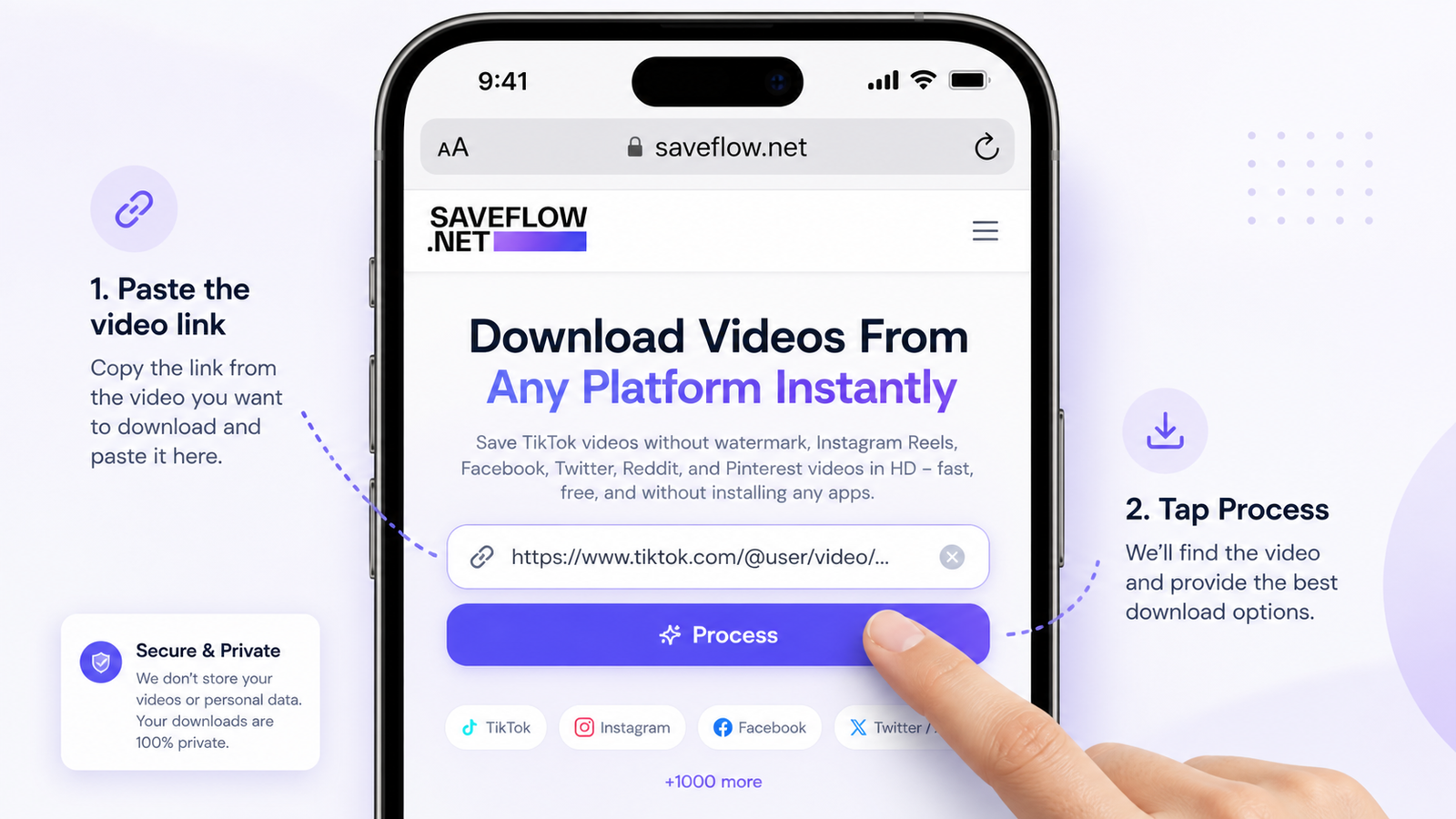
SaveFlow TikTok downloader open in Safari on iPhone with URL paste field
Step 3: Paste the Link and Download
Tap the input field on SaveFlow and paste the TikTok link. Tap the download button. The site will process the link and show you download options, usually including the video without watermark in different quality levels. Tap the quality you want.
720p is usually the sweet spot between quality and file size for most TikTok videos. 1080p is available for videos that were uploaded in that resolution, but not all TikTok videos are HD. If the uploader recorded in 720p, that's the max you'll get regardless of what the downloader offers.
Step 4: Handle the iOS Download Prompt
This is where iPhones get tricky. When you tap download, Safari will show a small prompt at the top of the screen asking if you want to download the file. Tap "Download." The file goes to your Downloads folder, not directly to your Camera Roll.
If you miss the prompt or it disappears too fast, check for a small blue download arrow icon in Safari's address bar. Tap it to see your download progress and access the file.
Step 5: Save to Camera Roll
Open the Files app on your iPhone. Go to "On My iPhone" (or "iCloud Drive," depending on your settings), then open the Downloads folder. Find the video file you just downloaded. Tap and hold on it, then select "Save Video." The video moves to your Photos app, where you can share it, edit it, or do whatever you want with it.
Alternatively, when the download finishes, you can tap the download icon in Safari, tap the file, and it'll open a preview. From there, tap the share button and choose "Save Video."
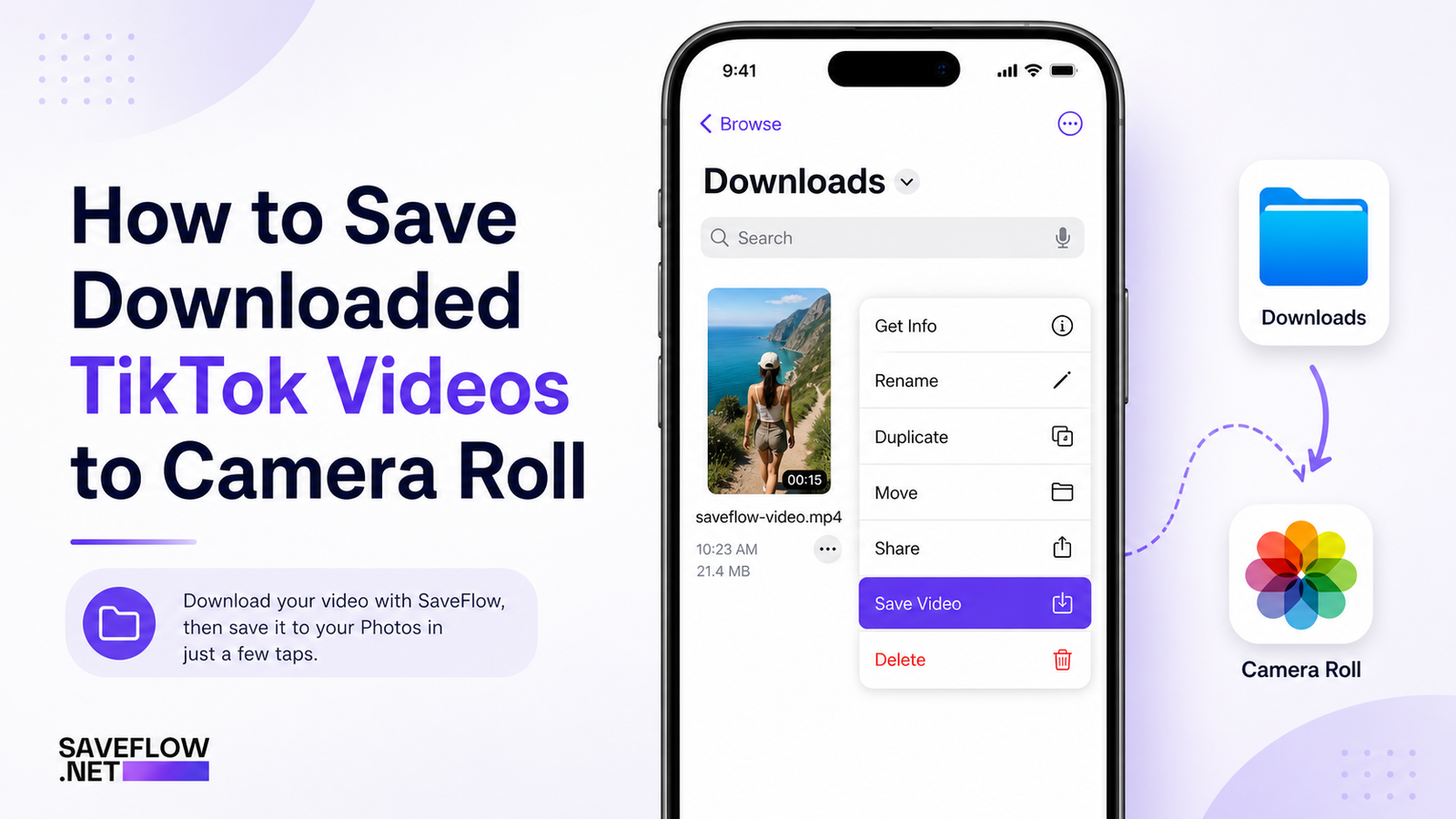
Saving downloaded TikTok video to Camera Roll from iPhone Files app
Troubleshooting Common iPhone Issues
The download prompt never appears
Go to Settings, then Safari, then Downloads. Make sure downloads are allowed and check where they're being saved. If "Block Pop-ups" is causing interference, you can temporarily turn it off in Safari settings, though SaveFlow doesn't use pop-ups for downloads.
You get a "cannot download" error
This usually happens when Safari's download manager gets confused. Try closing the Safari tab entirely, reopening saveflow.net in a new tab, and pasting the link again. If it persists, clear Safari's cache: Settings, Safari, Clear History and Website Data.
The file downloads but won't save to Camera Roll
Some video formats won't play nice with Photos. This is rare with TikTok videos since they're standard MP4 files, but if it happens, try opening the file in Files and sharing it to Photos directly. If the file is corrupted, try downloading again. A flaky internet connection during download can cause incomplete files.
The video is blurry or low quality
If the original TikTok was uploaded in low quality, the download will match that. There's no way to upscale it. Make sure you're selecting the highest available quality option on SaveFlow. Also check that you're not on a network that compresses downloads (some mobile carriers do this).
Saving Within TikTok vs. Using a Downloader
The TikTok app's built-in save feature is the easiest option when you don't care about the watermark. You tap save and it goes straight to your Camera Roll. The downside is the watermark and the fact that some creators disable downloading entirely. When a creator turns off saves, the option disappears from the share menu.
A web downloader like SaveFlow bypasses both of those limitations. You get the clean video and you can download videos even when the creator has disabled saves in the app. The trade-off is the extra steps, especially on iPhone where file management is more involved than on Android.
Does This Work on iPad?
Yes, the process is identical. Safari on iPad handles downloads the same way as on iPhone. The only difference is that iPads don't always have the TikTok app available in the same way. If you're using TikTok through the web browser on iPad, you can still copy the video link from the address bar and use it with SaveFlow.
Quick Note on Android
If you're on Android, the process is simpler. Android browsers download files more directly. You paste the link on saveflow.net, tap download, and the file goes to your Downloads folder. From there it shows up in your gallery automatically, no extra steps needed. Android doesn't have the same download prompt friction that iOS does.
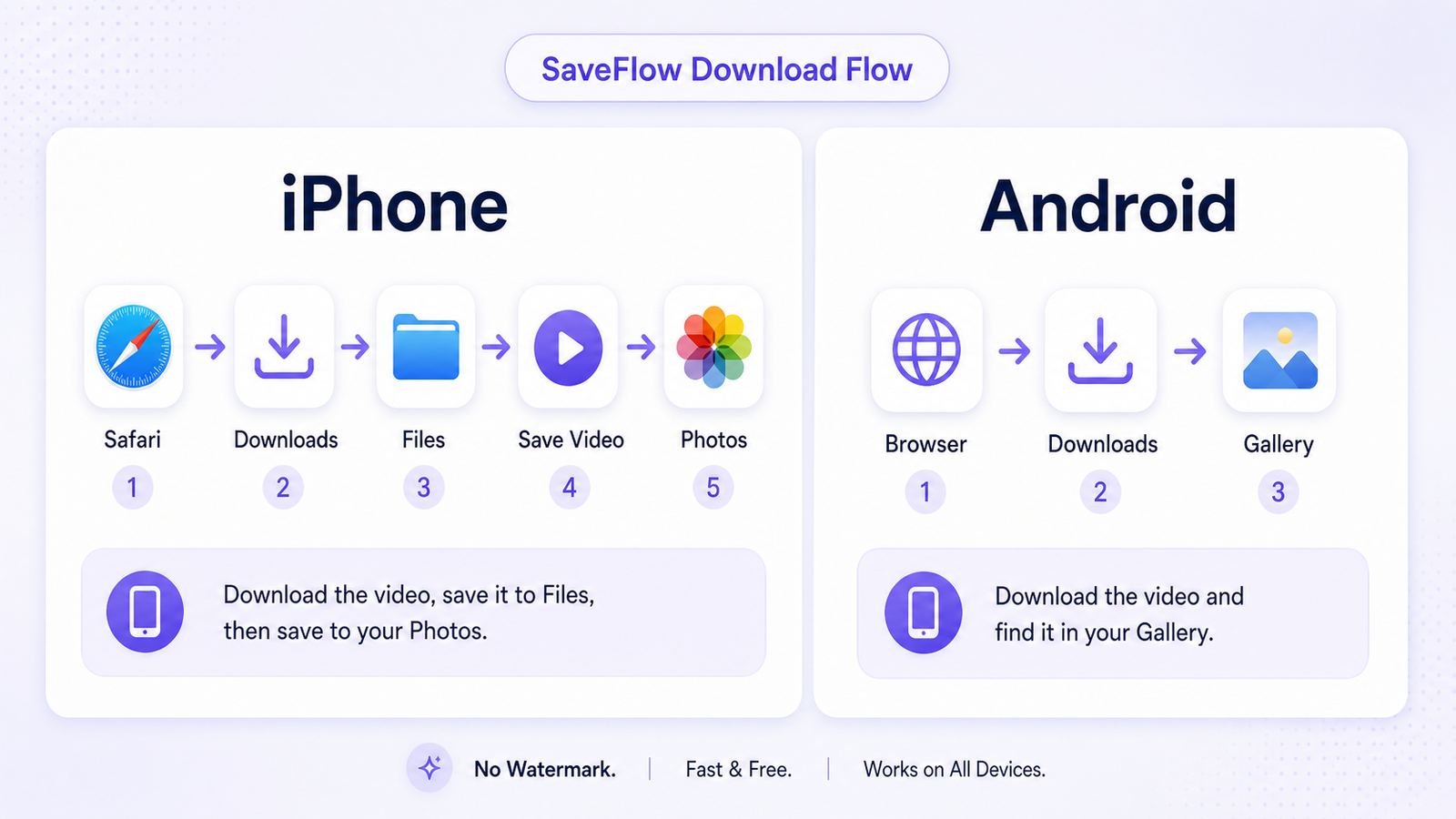
Download TikTok video without watermark comparison iPhone vs Android steps
FAQ
Is it legal to download TikTok videos without a watermark?
Downloading for personal use is generally fine. Reposting someone else's content as your own is a different story. The legality depends on what you do with the video and your local copyright laws. If you're reposting, credit the creator.
Do I need to install an app to download TikTok without watermark on iPhone?
No. SaveFlow works entirely in Safari. You don't need to install anything, and you don't need to create an account. Just paste the link on the website.
Why is the downloaded video shorter than the original?
It shouldn't be. If the video is cut short, the download likely failed partway through. Try downloading again on a stable Wi-Fi connection. Incomplete downloads are the most common reason for truncated videos.
Can I download TikTok Live videos?
Not while the Live is happening. If the creator saves their Live and it shows up on their profile as a regular video, you can download that replay the same way as any other TikTok.
Does SaveFlow store my downloaded videos?
No. The video goes directly to your device. SaveFlow processes the link to find the video source, but doesn't store copies of what you download.
What if the TikTok video link doesn't work?
Make sure you're copying the share link from TikTok, not a link from your browser's search results. The link should look something like vm.tiktok.com/something or tiktok.com/@user/video/numbers. If the video was deleted or set to private after you copied the link, the download won't work.