Most guides for saving a Facebook video tell you to install a browser extension first. You add it to Chrome, pin it, give it permission to read every page you visit, and only then do you get a download button. That works, but it is more access than a one-off download should ever need, and those extensions have a habit of getting pulled from the store or quietly changing what they do.
There is a simpler way. You copy the video link, paste it into a downloader page, and save the file. No install, no permissions, nothing left running in your browser afterward. That is what SaveFlow does, and this guide walks through it for both phone and desktop.
Why skip the extension
A Chrome extension that downloads videos needs permission to see the pages you open. For a tool you might use twice a month, that is a lot of standing access to hand over. Extensions also break. Facebook changes how its pages work, the extension stops downloading, and you wait for an update that may or may not come. Several popular ones have been removed from the Chrome Web Store entirely over the years.
A paste-the-link tool sidesteps all of that. It only ever sees the single link you give it. Close the tab and there is nothing left behind.
Copy the Facebook video link
Before you can download anything, you need the video's link. The steps are slightly different depending on where you are watching.
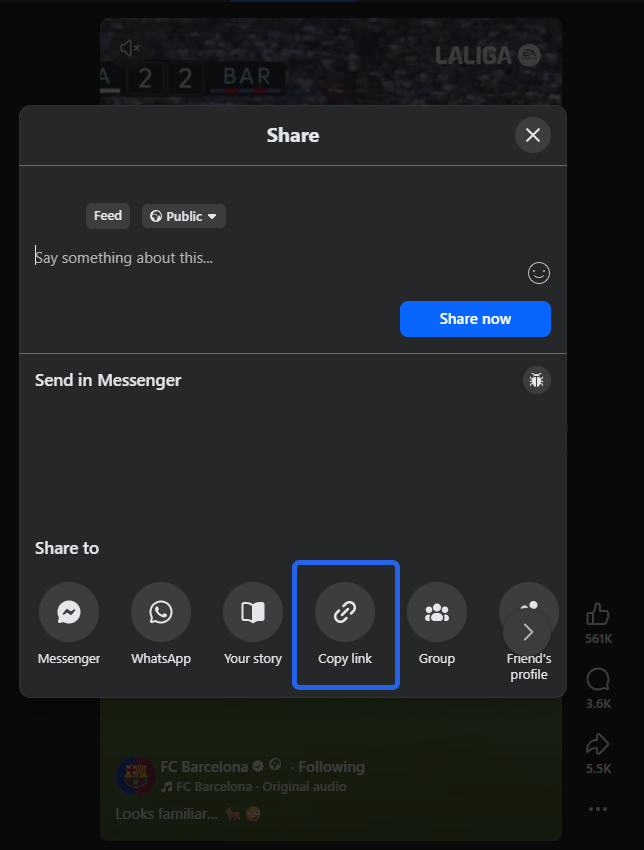
On desktop, click the three dots in the top right corner of the post, then choose "Copy link." If the video is playing in its own window, you can also just copy the URL from the address bar.
On the Facebook mobile app, tap the three dots near the top of the post or the Share icon below it, then tap "Copy link." That puts the video's address on your clipboard.
If the video is a Reel, open it, tap Share, and choose "Copy link" the same way.
Download the video with SaveFlow
Once you have the link copied, the rest takes a few seconds.
Open saveflow.net in any browser. There is a single box on the page where you paste a link from Facebook, Instagram, TikTok, YouTube, and other sites. You do not pick the platform first. The tool reads the link and figures out where it came from.

Paste the Facebook link into that box and start the download. SaveFlow fetches the video and shows you the available qualities, usually SD and HD. Pick the one you want. HD gives you the sharpest copy, SD is a smaller file if you are low on storage or on a slow connection.
Tap the quality you want and the file saves to your device. On desktop it lands in your Downloads folder. On a phone it goes to your gallery or your Downloads, depending on the browser.
That is the whole process. Copy, paste, pick a quality, save.
Downloading on a phone
The steps are the same on mobile, with one thing worth knowing. iPhone Safari sometimes opens the video in a new tab instead of saving it straight away. If that happens, press and hold the video and choose "Download Linked File," or use the share sheet to save it to Files or Photos. On Android the file usually saves directly, and you will find it in your gallery or your Downloads folder.
If you are using the Facebook app rather than a browser, copy the link inside the app first, then switch to your browser to open SaveFlow. The app itself will not let you paste into an outside tool, so the browser is where the actual download happens.
A note on what you can download
Save videos you have the right to save. Your own uploads, clips that are clearly meant to be shared, content where the creator is fine with it. Public does not always mean free to reuse, and reposting someone else's video as your own is a quick way to get a copyright strike. Downloading for personal offline viewing is a different thing from republishing, and the line matters.
Common problems
If the link will not download, the most likely reason is that the video is from a private profile or a closed group. Tools like SaveFlow can only reach videos that are publicly viewable. There is no way around a privacy setting, and that is by design.
If you pasted the link and nothing happened, check that you copied the video's link and not the link to someone's profile or to the Facebook homepage. The "Copy link" option on the post itself is the one you want.
If the quality looks worse than expected, that is usually the source. Facebook compresses uploads, and if the original was posted in low resolution, HD will only be as good as what was uploaded.
Frequently asked questions
Do I need to install anything? No. SaveFlow runs in your browser. You paste a link and download the file, with no extension or app to install.
Can I download Facebook Reels too? Yes. Copy the Reel's link using the Share option and paste it the same way you would a normal video.
Does it work on iPhone and Android? Yes, both. The only difference is where the file lands after it downloads, which depends on your browser.
Is it free? Yes. You can paste a Facebook link and download the video without paying or making an account.
Can I download private videos? No. Only publicly viewable videos can be downloaded. Private profiles and closed groups are off limits, and that is intentional.
The short version
Skip the extension. Copy the Facebook video link, open SaveFlow, paste it, choose SD or HD, and save. It works on desktop and on your phone, and you are not handing browser permissions to a tool you will use a handful of times. Just keep it to videos you actually have the right to download.