A processing spinner means the downloader accepted your request but has not produced download options. The delay can occur while a short link redirects, while the service reads the public post, or while the source platform prepares media variants. Waiting a few seconds is normal; waiting indefinitely is not.
The best response is a controlled test, not ten rapid retries. Confirm the link, test another public post, simplify the browser environment, and check whether the problem is isolated to one device or network. This approach reveals where the request stops.
Quick Answer
Cancel the frozen request, reload the page, and submit a freshly copied public TikTok URL. If it still hangs, test a second post, disable aggressive blockers for the page, switch networks, and retry in a private browser window. A failure affecting every device usually points to a temporary platform or service issue.
Before You Start
Before changing several settings at once, determine whether the issue belongs to one piece of media or to every TikTok request. The first two clues in this case are the link is redirecting or malformed and the source is slow or rate-limited. Testing a second known public item creates a useful control: if it works, focus on the original source, its URL, and its audience instead of reinstalling unrelated software.
Use one controlled workflow and record what changes. Begin with wait once, then stop: Give a normal request up to a minute. If nothing changes, cancel it instead of opening multiple duplicate tabs. Then change only one variable, such as the browser, connection, or copied link. This prevents a temporary success from being mistaken for a permanent fix and makes any support report far more useful.
Why Processing Can Freeze
The link is redirecting or malformed
Shortened links, copied share messages, and incomplete video IDs can leave the service waiting for a destination it cannot resolve.
The source is slow or rate-limited
Social platforms can delay repeated automated requests or temporarily change their media responses. Rapid retries may extend the problem rather than fix it.
Browser privacy tools block a required request
Script blockers, strict tracking protection, VPN filters, and managed networks can prevent the processing request from reaching the backend.
The video has unusual media
Long videos, slideshows, live replays, region-limited audio, or newly posted media may need a different processing path or may not expose a downloadable file yet.
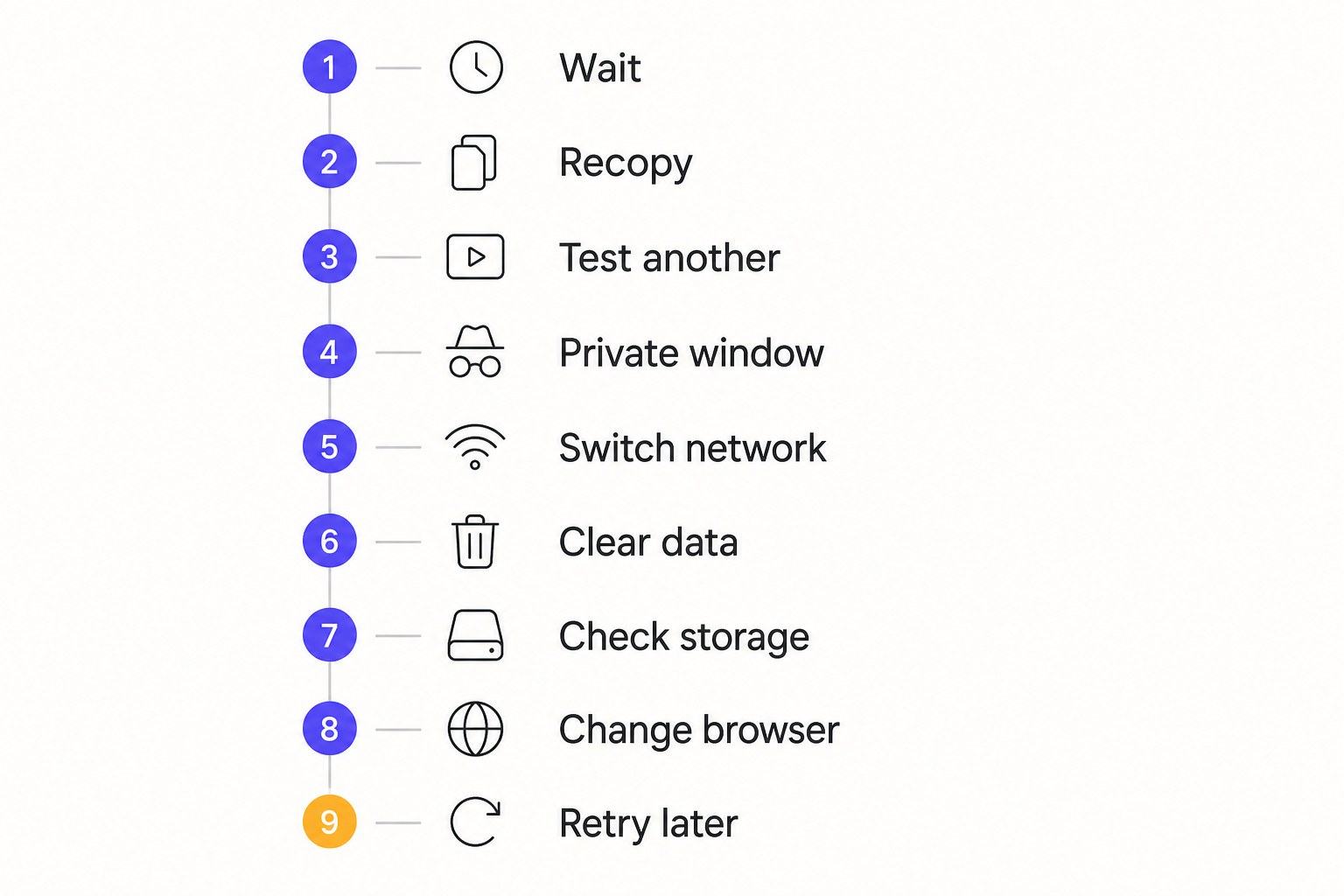
Nine Fixes in the Right Order
- Wait once, then stop
Give a normal request up to a minute. If nothing changes, cancel it instead of opening multiple duplicate tabs. - Recopy the link
Return to the public post and use Share, then Copy link. Submit only the URL and remove any surrounding caption or punctuation. - Test another public post
A successful second video proves the service is reachable and isolates the fault to the original post or its media format. - Reload in a private window
Private browsing starts with a cleaner cache and fewer extension interactions. Keep JavaScript enabled and allow the result page to finish loading. - Change one network variable
Turn off a VPN, switch from Wi-Fi to mobile data, or use another trusted connection. Do not change everything at once or you will not know which step helped. - Clear site data
Remove cached data for the downloader if an old frontend session appears stuck. Then open a fresh tab and retry the verified link. - Check device time and storage
Incorrect system time can break secure requests, while low storage can stop final file creation. Set time automatically and free space. - Try another current browser
Use an updated version of Chrome, Safari, Firefox, or Edge to rule out a browser-specific problem. - Pause and retry later
If several public posts fail across devices, the sensible fix is time. Wait for the platform or service to recover instead of hammering the endpoint.
Submit one request at a time
Parallel retries can trigger throttling and make progress indicators harder to trust.
Keep the result tab open
Mobile operating systems may suspend a background tab before processing completes.
Choose a practical quality
Very large source files take longer. Use the best available quality you actually need.
Report repeatable failures
A useful report includes the public URL type, device, browser, time, and exact stage where processing stopped.
Device-Specific Notes
iPhone and iPad
Use current Safari or another updated browser, check Photos permissions when a file must enter the library, and inspect the Files app when it does not appear in Photos. Keep the browser in the foreground until a large TikTok file finishes.
Android
Check the Downloads folder, browser download permission, free storage, and battery-saving rules. Some Android versions pause a background browser aggressively, so complete the request before switching apps.
Windows, macOS, and Chromebook
Use an updated mainstream browser and confirm the configured download location. Browser extensions, managed-network filters, and VPN software are easier to test in a private window or a clean browser profile.
How to Verify the Saved File
- Open the local file: Disconnect from the result page and play the saved item from local storage. This proves the download is complete rather than a temporary streamed preview.
- Check the important properties: Confirm duration, dimensions, file type, audio, and the final seconds. For this topic, also remember the practical advice to submit one request at a time.
- Compare with the source: Review the beginning, a motion-heavy middle section, and the ending. Missing slides, silent audio, abrupt endings, or a very small file can reveal an incomplete or lower-quality result.
- Respect the boundary: The first hard limit is private or removed posts. Delete unintended copies and retain the media only when your ownership, permission, or lawful use is clear.
Problems a Retry Cannot Solve
Private or removed posts
A processing service cannot access media that is not publicly available at the source.
Unsupported live or interactive formats
A live stream, protected music experience, or interactive post may not provide a normal downloadable MP4.
Source-side outages
When TikTok changes or fails, the correct action may simply be to wait.
Responsible use: Do not attempt to solve processing failures by supplying account credentials or bypassing access controls. Troubleshoot only public posts and download with the creator's permission.
Frequently Asked Questions
How long should TikTok processing take?
Simple public posts often resolve within seconds, but network conditions and media formats vary. A spinner that makes no progress after roughly a minute deserves a reset.
Will clearing the browser delete my downloaded videos?
Clearing site data removes local settings and cached web files, not MP4 files already saved in your Downloads folder or photo library.
Why does mobile data work when Wi-Fi fails?
The Wi-Fi network may use filtering, custom DNS, a proxy, or a cached route that blocks part of the request. Switching networks is a useful diagnostic test.
Final Takeaway
A frozen spinner is easiest to fix when you change one variable at a time. Start with the URL, compare another public post, simplify the browser, and test the network. If every clean test fails, pause and retry later. That disciplined sequence saves time and avoids creating unnecessary traffic.